


Table of Contents
Introduction
Server-side Setup
Client-side Setup
VS Code configuration
Debugging python application
Conclusion
Introduction
Visual Studio Code (VS Code) is a lightweight, extensible source code editor developed by Microsoft. It provides a powerful environment for coding, building, and debugging applications across multiple programming languages.
This document outlines the steps required to debug python applications running on HPE Nonstop systems using VS Code (GUI). It includes instructions for vs code installation, configuration, server-side and client-side setup to ensure a smooth debugging experience.
Server-side Setup
Install T1156L01^AAH (pytoolkit) SPR which has python module debugpy version 1.8.14 on Nonstop.
Following installation steps can be used if T1156L01^AAH is not accessible.
The installation process is similar to installing any Python module using pip. You can run the following command:
pip3 install debugpy
However, if you’re behind a network proxy or face connectivity issues, you can manually download the .whl (wheel) file from PyPI.org, transfer it to your HPE Nonstop system, and install it locally:
- Download the wheel file on a machine with internet access:
- debugpy-1.8.14-py2.py3-none-any.whl
- Transfer the file to your Nonstop system using FTP, SCP, or any preferred method.
- Navigate to the directory where the file is located:
cd <oss-path-where-the-file-is-copied>
- Install the package locally:
pip3 install debugpy-1.8.14-py2.py3-none-any.whl
Client-side Setup
install vs code and following vs code extensions
- Python
- Python Debugger
VS Code configuration
To debug a Python application running on an HPE Nonstop system using VS Code, you need to create a launch.json configuration file as below,
{
"version": "0.2.0",
"configurations": [
{
"name": "Python Debugger: Remote Attach",
"type": "debugpy",
"request": "attach",
"connect": {
"host": "10.132.236.28",
"port": 5678
},
"pathMappings": [
{
"localRoot": "c:\\senthil\\vs_code\\demo.py",
"remoteRoot": "/home/senthil/pydebug/demo.py"
},
]
}
]
}
In the above configuration, update the IP address and port under the connect section to match your Nonstop system. Additionally, provide the appropriate pathMappings to map the local source code directory on your development machine to the corresponding directory on the remote Nonstop host.
Debugging python application
This python example demo.py is a sample command line interface, developed using argparse module.
It has a print command which takes “—count” or “-c” as argument.
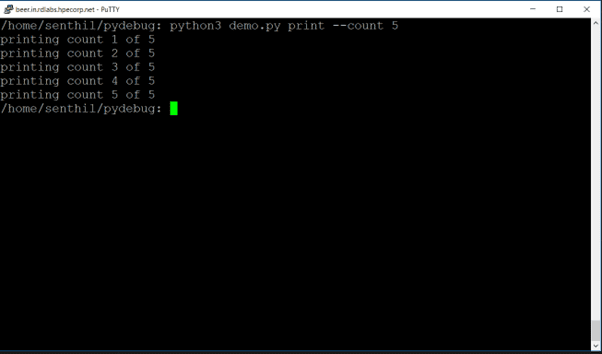
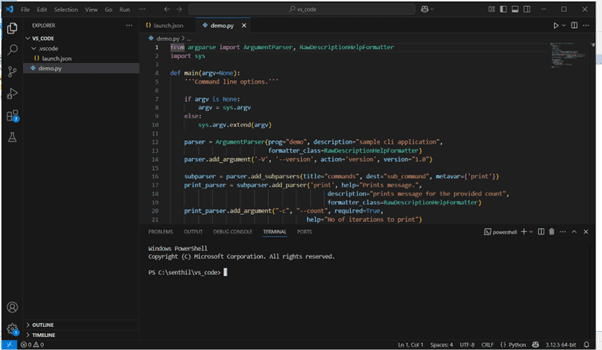 To Run this program on Nonstop,
python3 demo.py print --count 5
 To Debug this program, use below command on Nonstop
python3 -m debugpy --listen 10.132.236.28:5678 --wait-for-client demo.py print -c 5
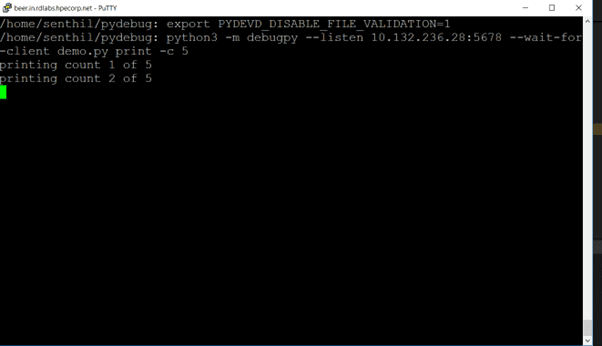 parameters passed:
“--listen” takes IP address of the Nonstop system and port number, use this IP and port in the launch.json created earlier
“--wait-for-client” To wait until the client attaches before running your code.
On vs code, go to file menu Run and click “start debugging”, alternatively press F5 to attach the debugging session,
After successful debug launch following screen appears:
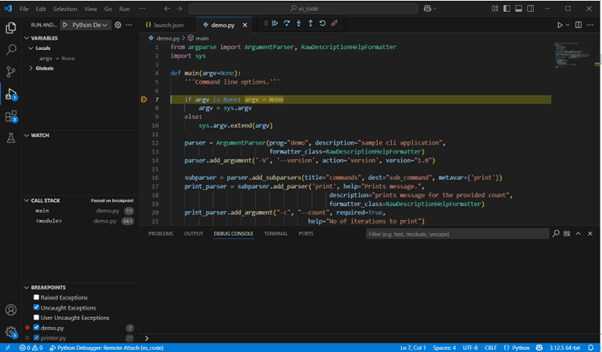
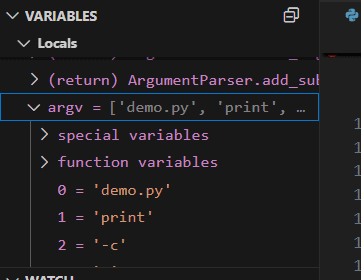
Variables view allows you to look at the content of the variables
debug controls which appears on the top of the screen, allows you to step-in, out and resume
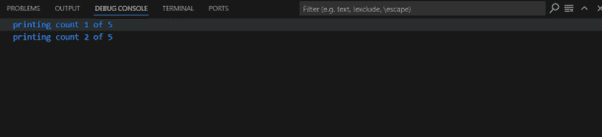
 Debug console, prints the standard output
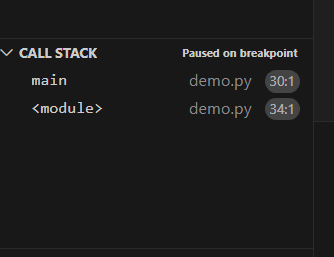
 Few other views on the left side panels are, watch, breakpoint and call stack
Additional debug view can be opened using file menu “view” and click “open view”
Conclusion
This article briefly described a method to use GUI-based debugging of python applications running on HPE Nonstop systems using Microsoft Visual Studio Code. By leveraging VS Code’s intuitive interface and built-in debugging tools.
- Microsoft, Visual Studio, and Visual Studio Code are trademarks or registered trademarks of Microsoft Corporation in the United States and/or other countries.
© Copyright 2025 Hewlett Packard Enterprise Development Company, L.P.
Be the first to comment